

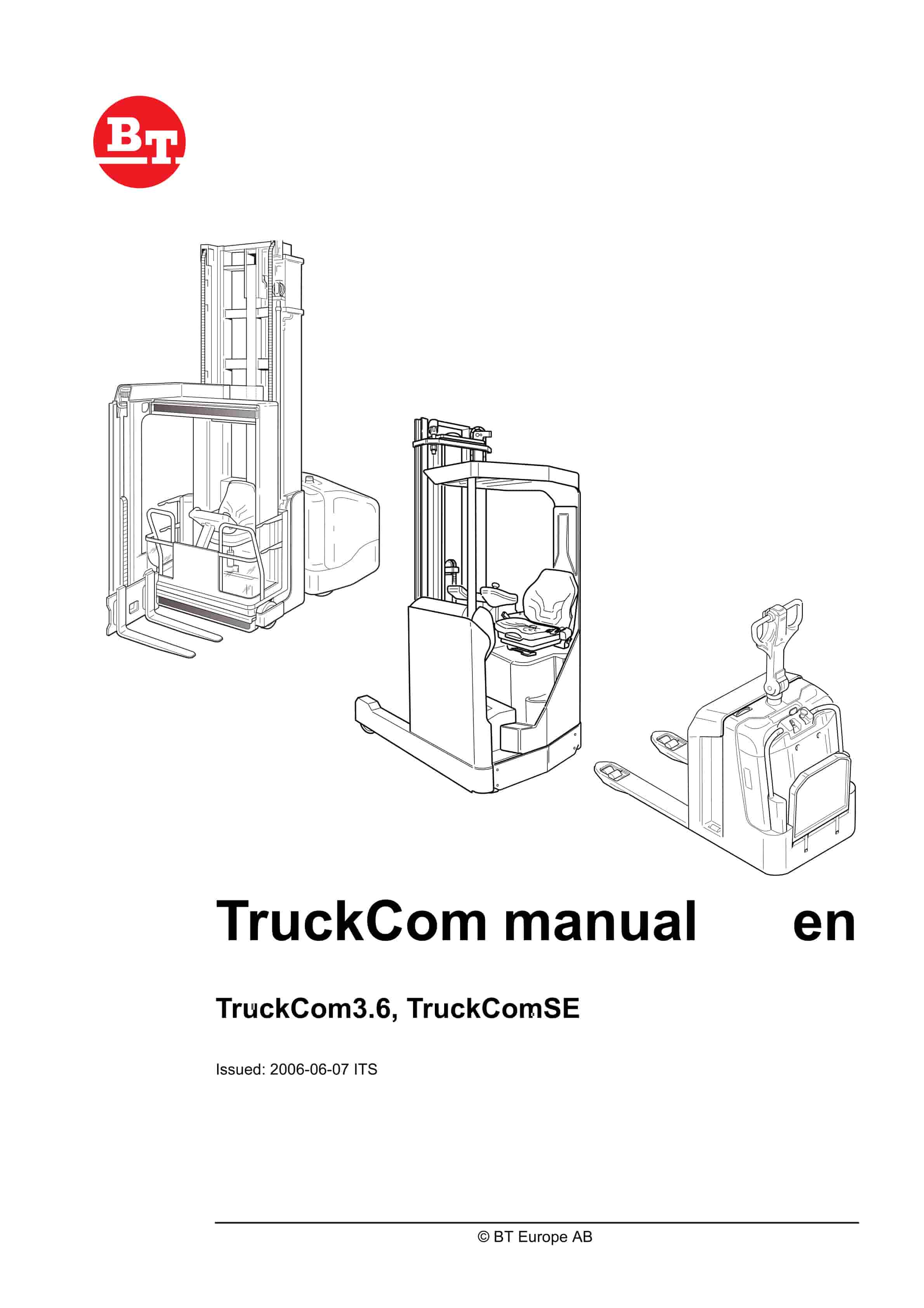
BT TruckCom3.6, TruckComSE TruckCom Manual
$30.00
- Type Of Manual: TruckCom Manual
- : Service Manual PDF
- Number of Pages: 112
- Size: 7.4MB
- Format: PDF
Product details
-
Model List:
- TruckCom3.6, TruckComSE
- 1. Contents
- 2. TruckCom – Walkies
- 2.1. General
- 2.2. Connection
- 2.3. Layout
- 2.3.1. Main program screen
- 2.3.2. Nodes
- 2.3.3. Icons
- 2.3.4. Tool buttons and menu bar
- 2.3.5. Information window
- 2.3.6. Status bar
- 2.4. Connection function
- 2.5. Disconnection function
- 2.6. Downloading program function
- 2.6.1. Normal downloading (truck with key)
- 2.6.2. Normal downloading (truck with keypad)
- 2.6.3. Emergency downloading (truck with keypad)
- 2.6.4. Emergency downloading (truck with keypad)
- 2.6.5. Downloading in old versions of logic card
- 2.7. Truck report function
- 2.8. Parameters function
- 2.8.1. PIN-code
- 2.8.2. Hour meters
- 2.9. Diagnostics function
- 2.9.1. Representation of signal colours
- 2.9.2. Tiller arm tab
- 2.9.3. Drive Controller tab (transistor regulator driving)
- 2.9.4. Pump controller tab (transistor regulator pump)
- 2.9.5. EPS (steering servo tab)
- 2.9.6. SEU tab (Extra I/O module)
- 2.10. Other menu functions
- 2.10.1. Save to file
- 2.10.2. Download from file
- 2.10.3. Reset CAN adapter
- 2.10.4. Delete error code log
- 2.10.5. Reset hour meter
- 2.10.6. Read error code log
- 2.10.7. Adjust date and time
- 2.10.8. Adjusting the hour meter on older cards
- 2.10.9. Help
- 2.10.9.1. About the TruckCom application
- 2.10.10. Exit
- 2.11. Specifications
- 2.12. Installation
- 2.12.1. Installation on a PC with Windows 95/ 98
- 2.12.2. Installation on a PC with Windows XP/2000
- 2.12.3. Installation on a PC with Windows NT
- 2.12.4. In case of communication problems with CAN
- 2.13. Installation of the CPC-USB interface
- 2.14. To uninstall
- 3. TruckCom – Riders
- 3.1. General
- 3.2. Connection
- 3.3. Layout
- 3.3.1. Main window
- 3.3.2. Nodes
- 3.3.3. Icons
- 3.3.4. Tool buttons and menu list
- 3.3.5. Information window
- 3.3.6. Status row
- 3.4. Function for connection
- 3.5. Function for disconnecting
- 3.6. Function for program downloading
- 3.6.1. Normal loading
- 3.6.2. Loading in old versions of the electronic card
- 3.6.3. Emergency loading
- 3.7. Function for truck report
- 3.8. Function for parameters
- 3.9. Function for diagnostics
- 3.9.1. Signal colours
- 3.9.2. Tab for Analogue
- 3.9.3. Tab for Temperature
- 3.9.4. Tab for Digital
- 3.10. Other menu functions
- 3.10.1. Save to file
- 3.10.2. Loading from a file
- 3.10.3. Resetting the CAN adapter
- 3.10.4. Deleting the fault code log
- 3.10.5. Resetting the hour meter
- 3.10.6. Reading the fault code log
- 3.10.7. Adjusting the date/time
- 3.10.8. Adjusting the hour meter on older cards
- 3.10.9. Help
- 3.10.9.1. About TruckCom
- 3.10.10. Conclude
- 3.11. Specifications
- 3.12. Installation
- 3.12.1. Installation on a PC with Windows XP/ 2000/NT
- 3.12.2. IInstallation on a PC with Windows 95/ 98
- 3.12.3. In the event of any problems with communication with CAN
- 3.13. Installation of the CPC-USB interface
- 3.13.1. Uninstallation
- 4. TruckComSE
- 4.1. General
- 4.2. Connection
- 4.2.1. Specifications
- 4.3. Truck software management on the PC
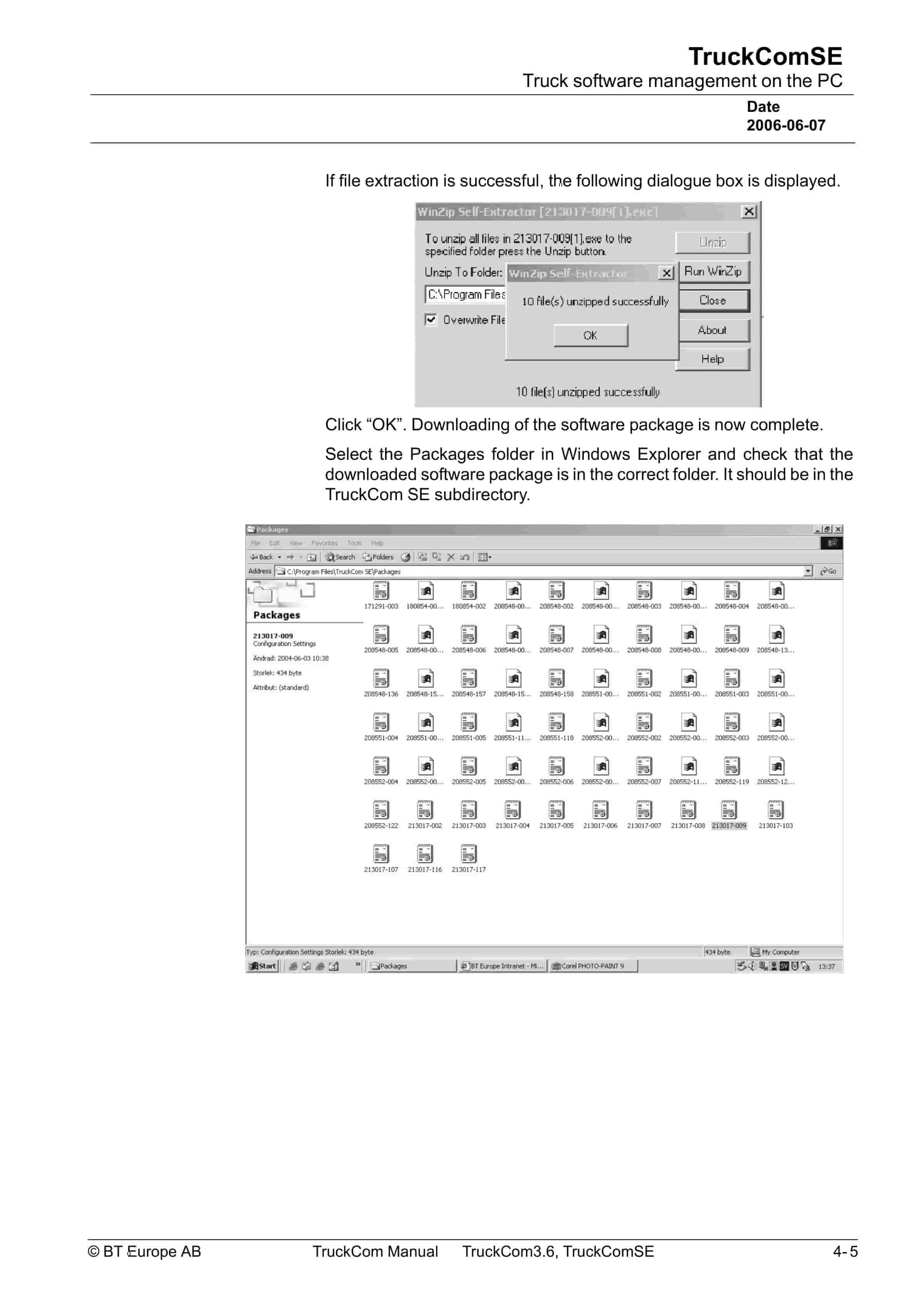
- 4.3.1. Downloading the software package via the network
- 4.4. Connecting to the truck
- 4.4.1. Connecting to the truck
- 4.4.2. Menu window tree
- 4.4.3. Disconnection
- 4.5. Menus
- 4.5.1. File menu
- 4.5.1.1. Open package
- 4.5.1.2. Save truck report
- 4.5.1.3. Save output window to file
- 4.5.1.4. Save parameter setup to file
- 4.5.1.5. Update parameter setup in truck
- 4.5.1.6. Save height pre-selection setup to file
- 4.5.1.7. Update height pre-selection from file
- 4.5.2. View menu
- 4.5.2.1. Read configuration
- 4.5.2.2. Update
- 4.5.2.3. Abort communication
- 4.5.3. Tools menu
- 4.5.3.1. Log In
- 4.5.3.2. Log In Production mode
- 4.5.3.3. Log Out
- 4.5.3.4. Read error log
- 4.5.3.5. Erase error log
- 4.5.3.6. Set hour meters
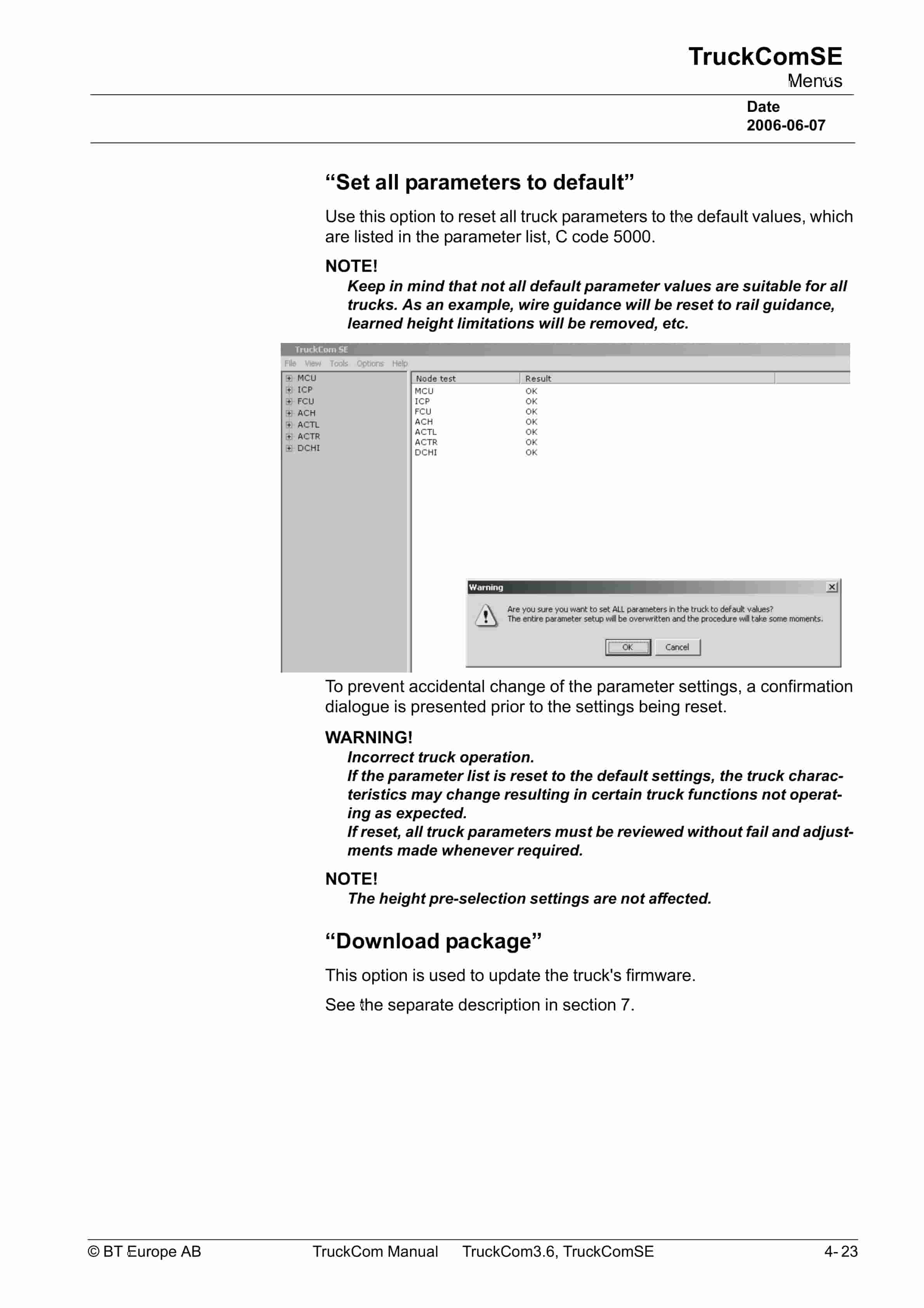
- 4.5.3.7. Set all parameters to default
- 4.5.3.8. Download package
- 4.5.4. Option menu
- 4.5.4.1. Program settings
- 4.6. Download package, Function for firmware downloading
- 4.6.1. Normal firmware download
- 4.6.1.1. Errors encountered during downloading
- 4.6.2. Emergency download
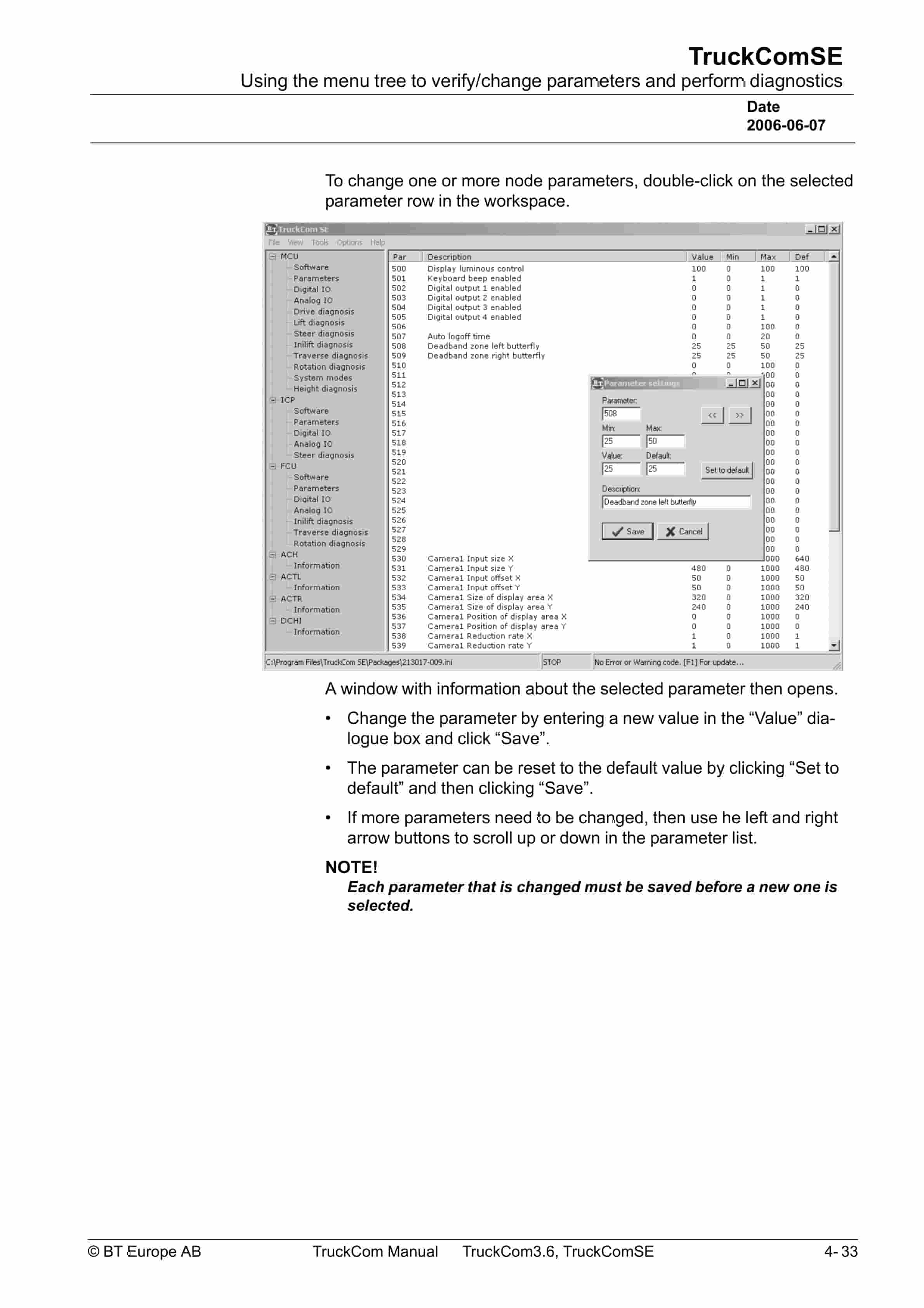
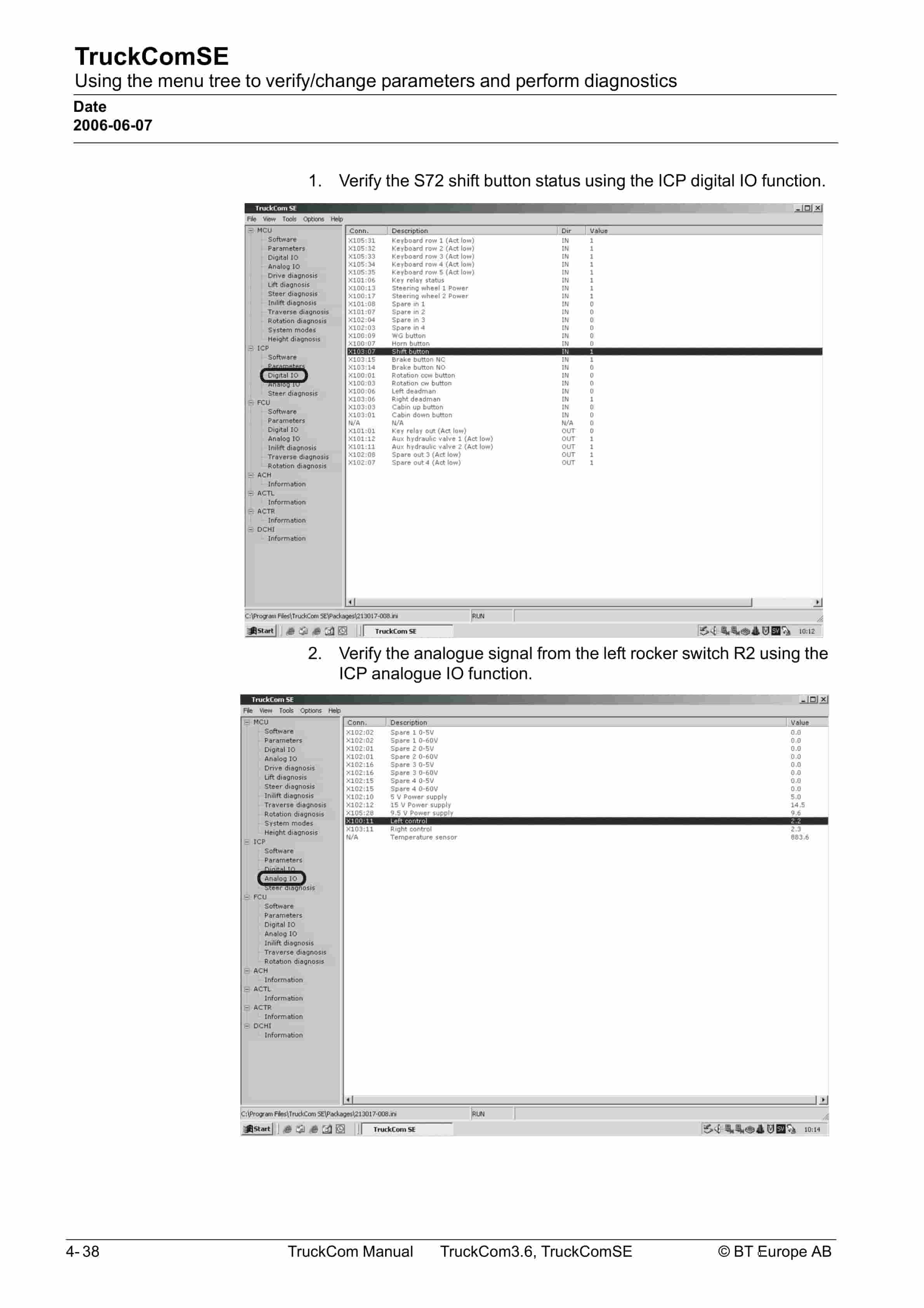
- 4.7. Using the menu tree to verify/ change parameters and perform diagnostics
- 4.7.1. Software
- 4.7.2. Parameters
- 4.7.3. Diagnostics/troubleshooting
- 4.7.3.1. Digital IO
- 4.7.3.2. Analog IO
- 4.7.3.3. Example Diagnostics procedure for the Initial lift function
- 4.8. Installation
- 4.8.1. Installation of TruckCom SE on a PC
- 4.8.1.1. Downloading TruckCom SE via the Internet
- 4.8.1.2. Installing/updating TruckCom SE on the PC
- 4.8.2. Necessary changes in Windows XP and Windows 2000 for TruckCom SE
- 4.8.2.1. Changes in Windows Control Panel
- 4.8.3. In case of communication errors with the CAN
- 4.9. Installation of the CPC-USB interface
- 4.9.1. To uninstall
Related products
-
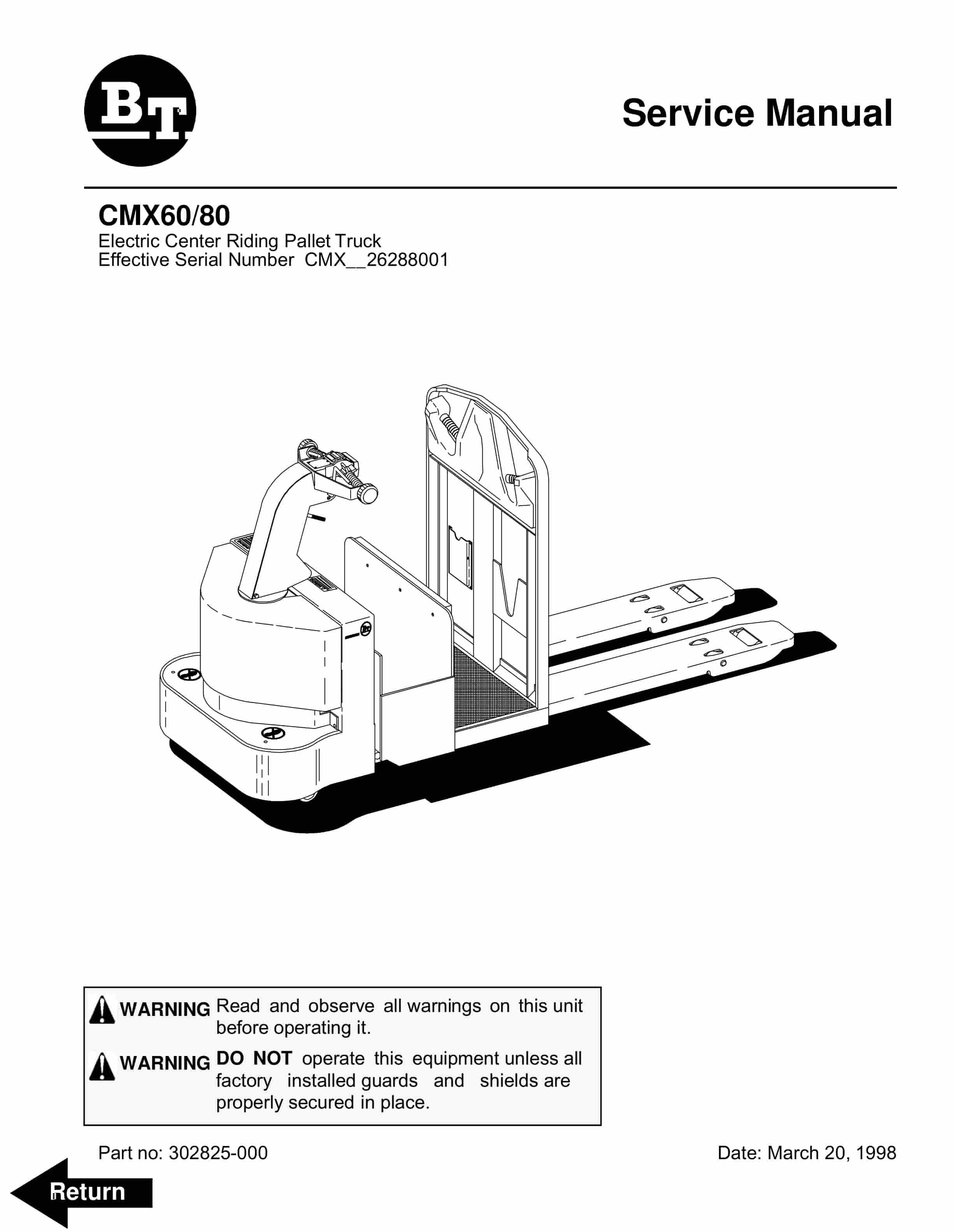
BT CMX60, CMX80 Electric Center Riding Pallet Truck Service Manual 302825-000
$30.00 Add to cart -
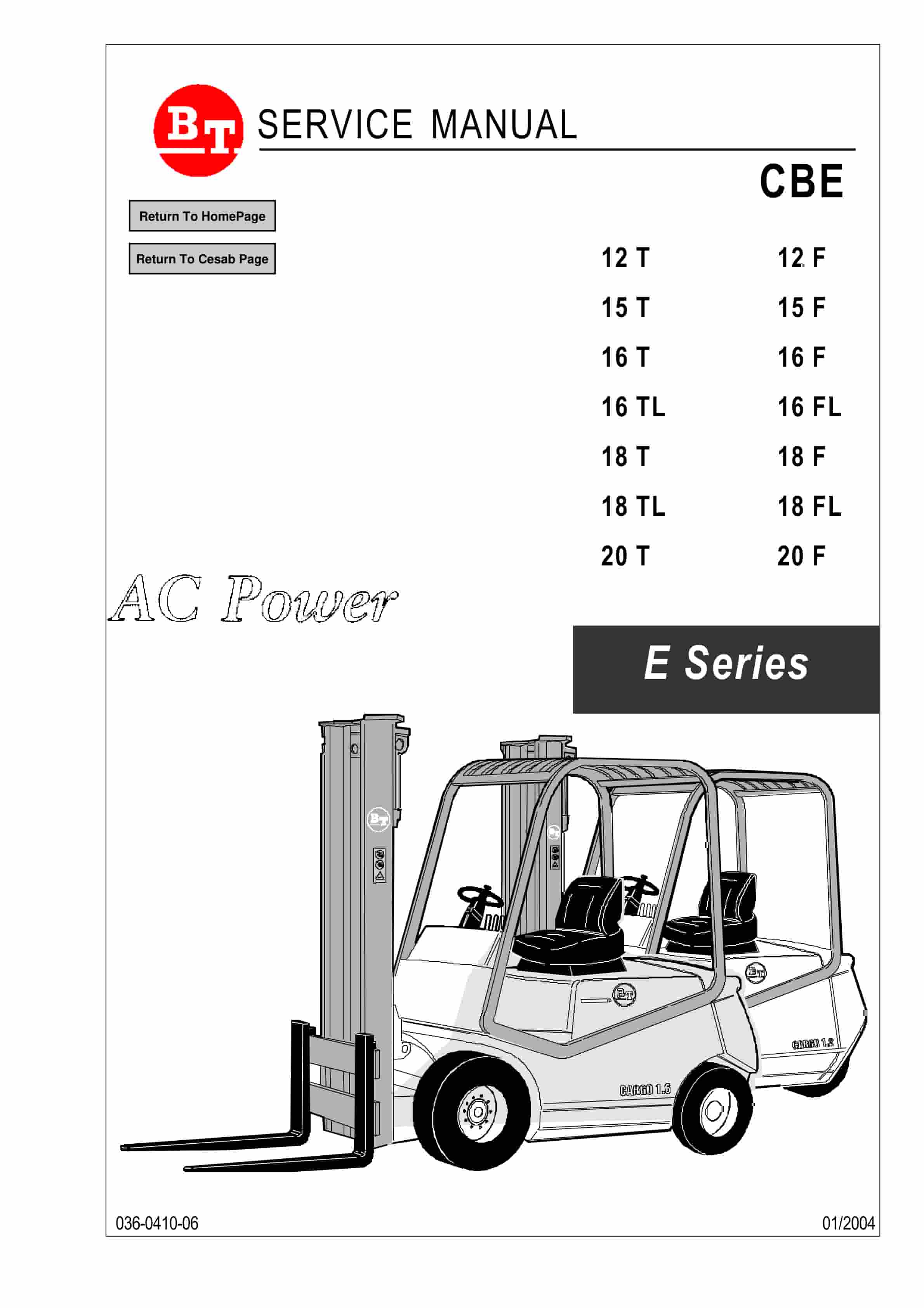
BT CBE 12T to CBE 20F Service Manual 036-0410-06
$30.00 Add to cart -
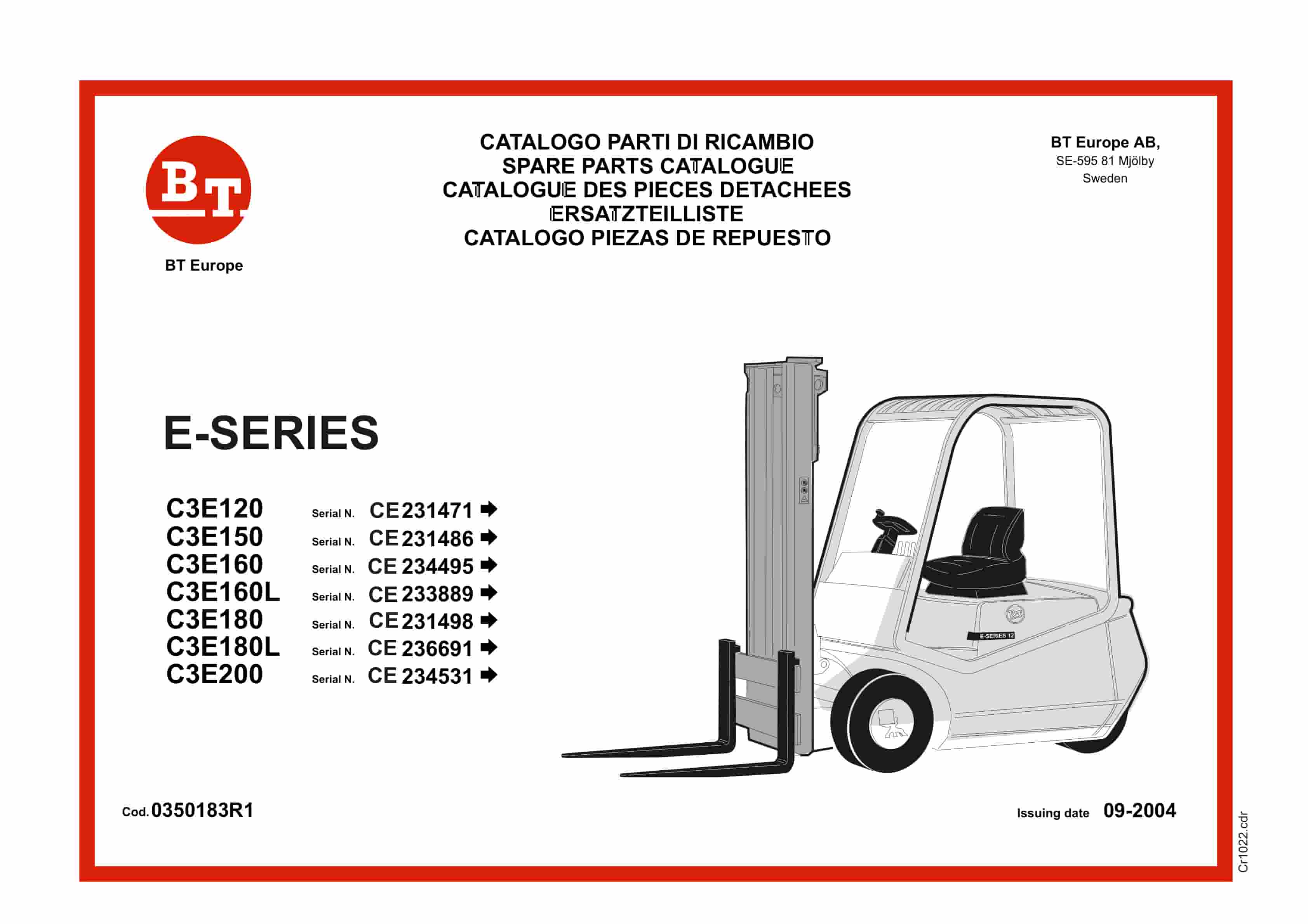
BT E-Series C3E120 to C3E200 Service Manual 0350183R1
$30.00 Add to cart -
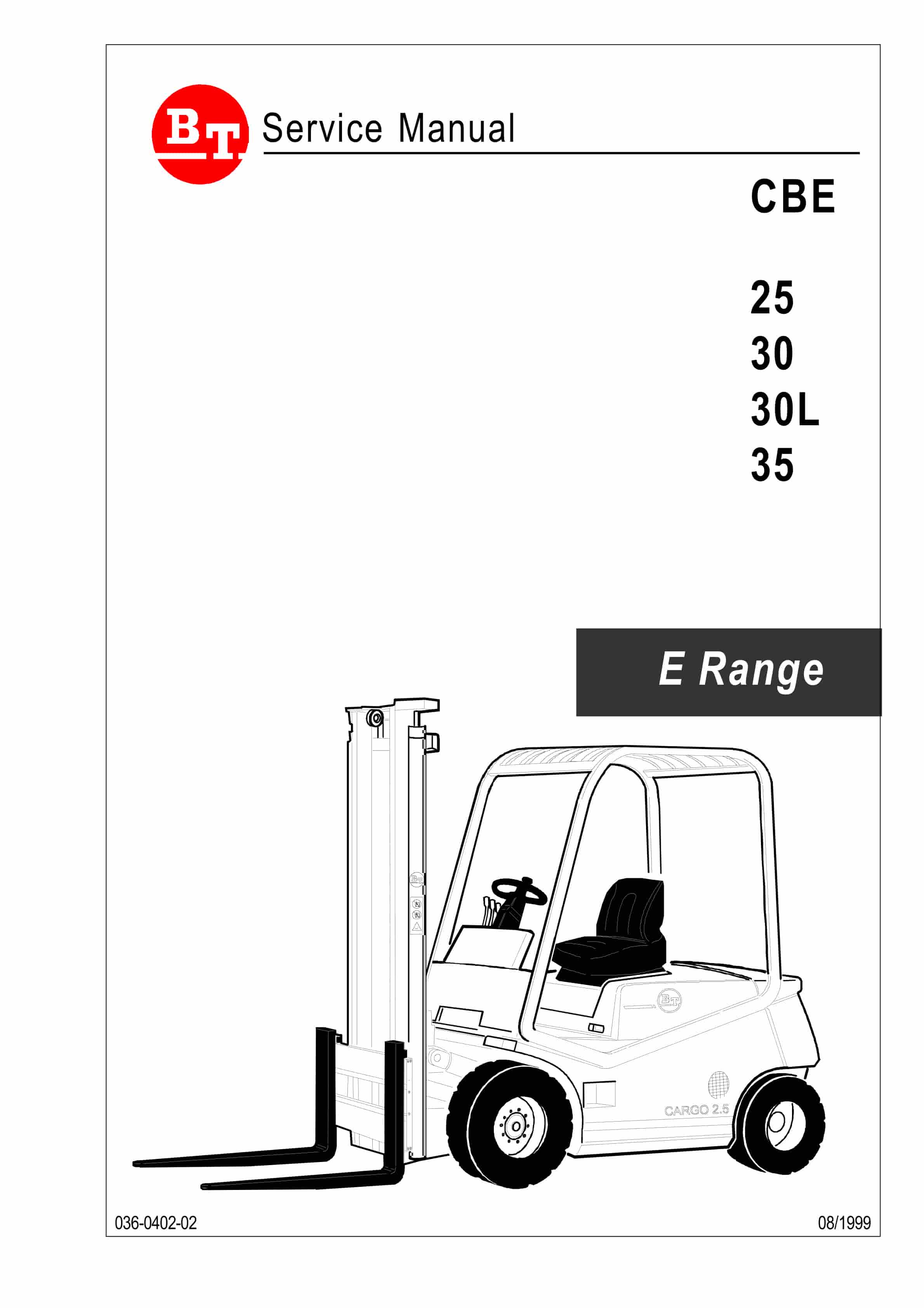
BT CBE 25, CBE 30, CBE 30L, CBE 35 Service Manual 036-0402-02
$30.00 Add to cart -
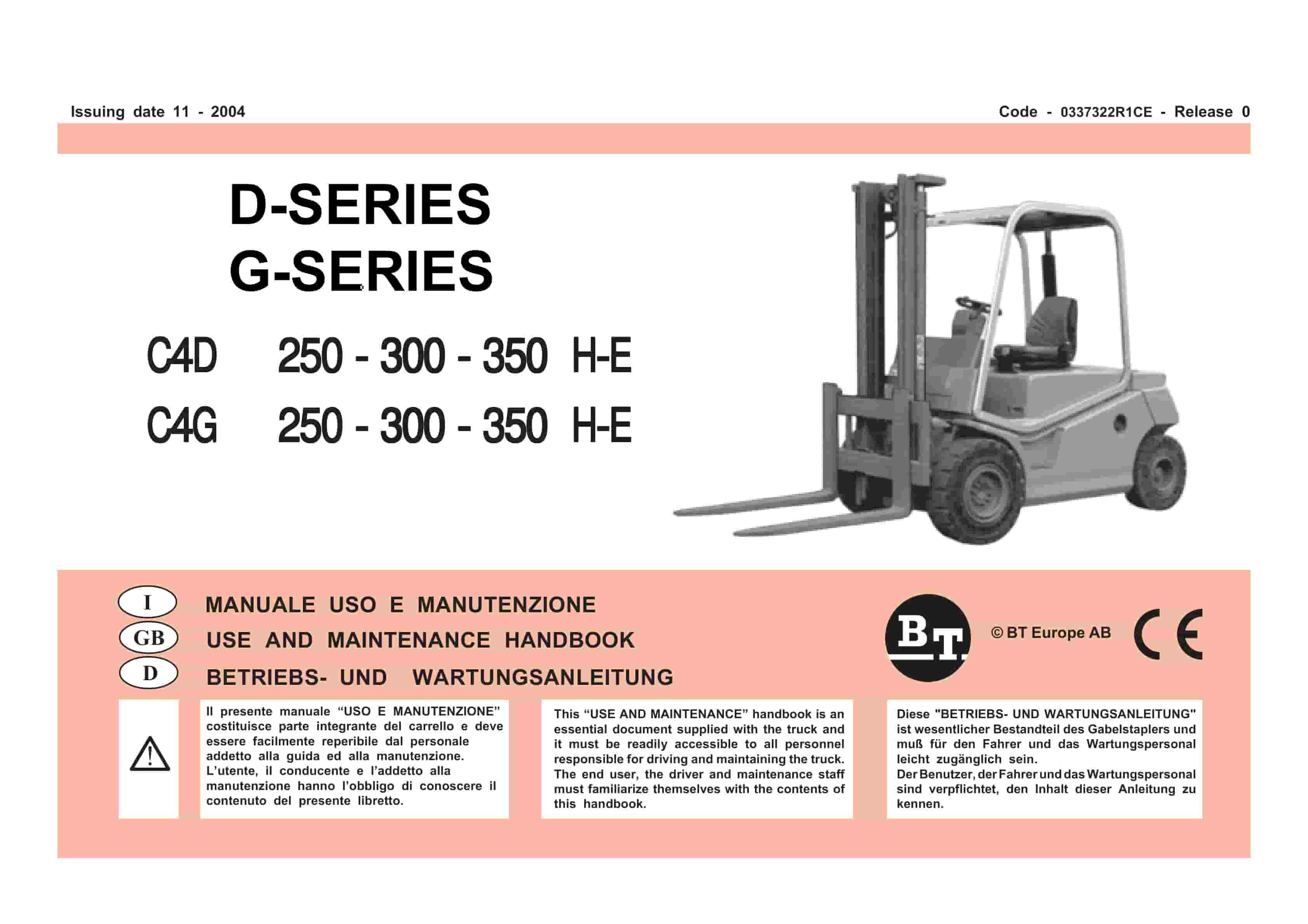
BT D-G-Series C4D250H-E, C4D300H-E, C4D350H-E, C4G250H-E, C4G300H-E, C4G350H-E Use And Maintenance Handbook 0337322R1CE
$30.00 Add to cart


